0

Sparky & The Case of the Missing Smoke Alarms

sparky

FREE – Sparky & The Case of the Missing Smoke Alarms, an interactive book from Cupcake Digital. This educational app is perfect for Fire Prevention Week (October 5 – 11) because this year’s theme is Working Smoke Alarms Save Lives. Kids read along to help Sparky the Fire Dog® and his friends solve the mystery of Aunt Dottie’s smoke alarm. As they read, they will learn about the importance of working smoke alarms, what to do when a smoke alarm sounds, and how to plan an escape. There are also fire safety tips and fun interactions woven through the story. The story is narrated with highlighted text for emerging readers. The narration can be muted for kids who want to read the story on their own. The app also includes a game and a sing-along music video.

At the end of the story, there are resources for adults. There are two sets of questions about the story. The “Let’s Talk About” questions address literal understanding of the story. The “Let’s Think About” questions address extended meaning. The Parents’ Page connects adults to a collection of fire safety resources. The Teacher Page gives suggestions for using the app in the classroom. There is a page with information about the Common Core Standards addressed by the app. Print-outs and activities to supplement the story are available online at Sparky Home | Sparky The Fire DogWhat is not to love about this educational app? It seems to have it all – a cute story packed with interactivity, a great message about fire safety, a game, a sing-along video, connections to CCSS, and a guide for adults!

Download link: https://itunes.apple.com/us/app/sparky-case-missing-smoke/id869373998?mt=8&uo=4

0

Ocean – Animal Adventures for Kids

ocean

FREE for a limited time – Ocean – Animal Adventures for Kids, an educational app for preschoolers. Kids will become sea life experts as they explore 3 ocean scenes – a coral reef, a shark reef, and the deep-sea. The app has two modes – one for tapping/interacting with the creatures and the other for listening to/learning facts about them. Kids will learn fun facts about 30+ animals and they will be delighted with the 60+ animations. The app is narrated in 12 languages – English, German, French, Spanish, Russian, Swedish, Japanese, Chinese, Portuguese (Brazilian), Turkish, Dutch and Italian. Check out this cute interactive book for your preschooler today. 🙂

Download link: https://itunes.apple.com/us/app/ocean-animal-adventures-for/id819165012?mt=8&uo=4

0

Grid Diary

grid diary

FREE for a limited time – Grid Diary – Questionnaire Diary, Gratitude Journal, Private, Secret and Simple. This educational app was featured by Apple in New & Noteworthy and What’s Hot. Grid Diary is a unique way of keeping a learning journal, health journal, gratitude journal, etc. The app is made up questions/prompts that are arranged in a grid. You can customize the number of questions/prompts and the content of those questions/prompts. Students can use Grid Diary to reflect on their thoughts or on their learning. They could jot down what they know, what they want to know, what they learned – a personal KWL chart! They could reflect on their understanding of the day’s lessons. They could ask questions that they still have. Teachers could use this app to get feedback from their students on what they learned each day – a daily grid of exit slips. 🙂  Students can email or print their entries one at a time. They can also screen shot their grid to email or print all of their entries at once. Teachers could also use this app as a teaching journal about their lessons, students, etc. Grid Diary could be used in the classroom in so many ways. Check it out this FREE version today.

Download link: https://itunes.apple.com/us/app/grid-diary-questionnaire-diary/id597077261?mt=8&uo=4

0

5 Math Manipulatives for your Digital Toolkit

Five FREE apps for your virtual math toolkit. 
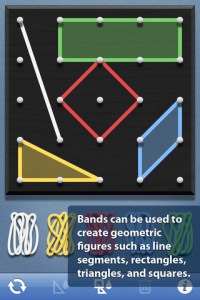
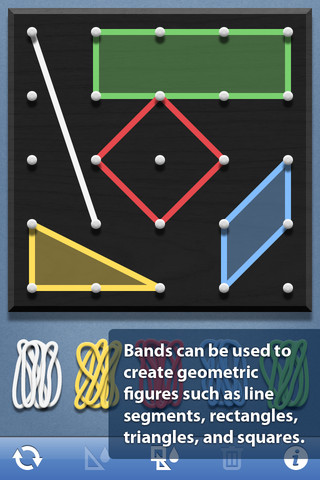
Geoboard by The Math Learning Center (a nonprofit organization dedicated to K – 12 education) is a FREE app that turns your iPhone/iPad into a virtual geoboard. Geoboards can be used as tools to teach mathematical concepts such as polygons, perimeter, area, line segments, angles, congruent shapes, symmetry, fractions, etc. Shapes are created by stretching bands on the geoboard’s pegs. There are 5 colors of bands in the iPhone version and 8 in the iPad version. There is also a tool to fill in shapes. On the iPad version, you can switch from the standard 25 peg board to a 150 peg board to create more complex shapes. This is a great app with the potential to be used in so many ways.

Geoboard, by The Math Learning Center - Clarity Innovations

FREE for the iPad, Virtual Manipulatives contains math manipulatives for teaching fractions, decimals, and percents. Included are tiles/circles divided into halves, thirds, fourth, fifths, sixths, eighths, tenths, and 12ths AND their corresponding decimals and percentages! The manipulatives are color coded across the settings so that 1/2 is blue as is .50 and 50%. Kids drag tile pieces onto the work area to compare fractions/decimals/percentages. In the settings you can change from tiles to circles, make the pieces transparent, and hide the numbers on the pieces. Completed work can be easily saved to photos. Finding equivalent fractions has never been so slick – WOW!!

Common Core Standards

  • 3.NF.3 – Explain equivalence of fractions in special cases, and compare fractions by reasoning about their size. Understand two fractions as equivalent (equal) if they are the same size, or the same point on a number line.
  • 4.NF.1 – Explain why a fraction a/b is equivalent to a fraction (n × a)/(n × b) by using visual fraction models, with attention to how the number and size of the parts differ even though the two fractions themselves are the same size. Use this principle to recognize and generate equivalent fractions.
Virtual Manipulatives! - ABCya.com

equivalent fractions

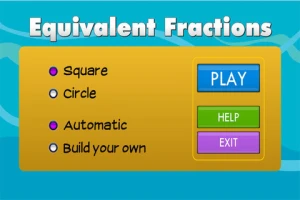
From the National Council of Teachers of Mathematics comes a FREE app called Equivalent Fractions. Kids create equivalent fractions by dividing and shading squares or circles. Circles can be divided into 24ths. Squares can be divided into 144ths. In the play mode, a fraction is shown and kids must create 2 additional fractions that are equivalent. All 3 fractions must have different denominators. The app also places the fractions on a number line – a great visual for comparing! There is also a “build your own” mode which would be fabulous to use for guided exploration & practice. Kids could also use this section as a virtual manipulative when working independently. This app is an excellent resource for the classroom !!

Common Core Standards met:

  • 3.NF.3 – Explain equivalence of fractions and compare fractions by reasoning about their size. Understand two fractions as equivalent (equal) if they are the same size, or the same point on a number line. Recognize and generate simple equivalent fractions, e.g., 1/2 = 2/4, 4/6 = 2/3). Explain why the fractions are equivalent, e.g., by using a visual fraction model.

Equivalent Fractions - National Council of Teachers of Mathematics

counting board

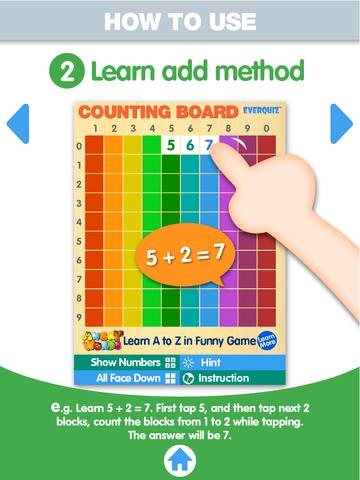
Another FREE app is Counting Board HD, a colorful number grid that can be used to help kids learn basic number concepts. The app is advertised as being suitable for 2 to 4 year olds but it can also used with older students. I frequently used number grids with third graders. Number grids help kids see patterns and visualize math concepts. With younger children, the app can be used for counting to 100 – by ones, fives, tens. Younger kids can also learn basic addition and subtraction by using the app to count up or count back. With older kids, number grids can be used to teach: greater than and less than, how to find missing addends, place value concepts, skip counting, and more! The app can be used with the numbers showing or hidden and the pronunciation can be on or off. The app simple to use, visually appealing, and useful for so many math lessons. I love this app! It’s so much easier than dragging out the laminated number grids and counters. 🙂

Common Core Standards met:

  • K.CC.1. Count to 100 by ones and by tens.
  • K.CC.2. Count forward beginning from a given number within the known sequence (instead of having to begin at 1).
  • 1.NBT.5. Given a two-digit number, mentally find 10 more or 10 less than the number, without having to count; explain the reasoning used.
  • 1.NBT.6. Subtract multiples of 10 in the range 10-90 from multiples of 10 in the range 10-90 (positive or zero differences), using concrete models or drawings and strategies based on place value, properties of operations, and/or the relationship between addition and subtraction; relate the strategy to a written method and explain the reasoning used.
  • 3.OA. 9. Identify arithmetic patterns (including patterns in the addition table or multiplication table), and explain them using properties of operations.

Download link: https://itunes.apple.com/us/app/counting-board/id450751745?mt=8&uo=4
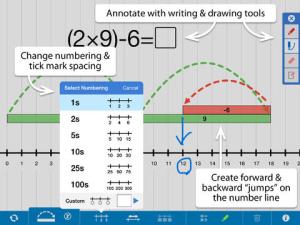
number lineNumber Line, by the Math Learning Center is a fantastic FREE app that will help kids visualize number patterns and understand number operations. The app is well-designed with several useful features. The number line can be set by ones, twos, fives, tens, twenty-fives, and hundreds. It can also be customized to show multiples of any whole number from 1 to 100. This feature is perfect for skip counting and/or for visualizing multiplication. The app permits kids to add and manipulate forward & backward jumps – a great feature for teaching addition & subtraction. This feature also helps kids visualize multiplication as repeated addition of the same number and division as repeated subtraction of the same number. Teachers are able to hide or reveal numbers on the number line. This feature can be used to challenge kids to apply what they know in order to figure out the missing number/numbers. Teachers can also use this feature to teach kids how to solve more difficult patterns that are missing several numbers; such as 4, __, __, 16.  Kids can use the drawing tools to show what they know. They can write equations and expressions with the text tool. They can screen shot their work and use it as an exit slip after a lesson. Add this one to your virtual toolkit today – “seeing math” helps kids understand it. 🙂

Download Link: https://itunes.apple.com/us/app/number-line-by-math-learning/id751816884?mt=8&uo=4

1

TED – TED conferences and TEDiSUB – Enjoy TED videos with Subtitles!

Parents/Teachers – here is an app for you and the kids!

TED started in 1984 as a conference bringing together people from three worlds: Technology, Entertainment, and Design. It is now a nonprofit devoted to ideas worth spreading. Here is information on 2 apps that will bring the world of TED to the device of your choice!

TED - originalRiveting talks by remarkable people and FREE to the world. Connect with the official TED app for iPhone/iPad. Access more than 1,700 TEDTalk videos with more added every week! When you open the app, you will see a wide variety of featured talks – Where is Google going next? by Larry Page, A new way to grow bone by Molly Steven, Teach teachers how to create magic by Christopher Emdin, and so on. There are about 60 talks to choose from. Click on a title that interests you to get additional information about that talk: the length of the talk, a short synopsis, related talks, and related tags. Then you can watch the talk, save it, bookmark it, or share it. The app permits you to browse the entire library at any time – even when you are offline. You can browse by tag or by language. TEDTalks are subtitled in over 100 languages! You can create your own playlist or the app can create one for you based on your mood and how much time you have to listen. A fabulous resource for lifelong learners!!

TED - TED Conferences

Ted

FREE for a limited time – TEDiSUB – Enjoy TED videos with Subtitles!  This app enhances the TED experience with added control features. It also allows you to see two subtitles at once – great for a language classes. 

TEDiSUB - Enjoy TED videos with Subtitles! - semix2

0

3 FREE Poetry Apps from the International Reading Association

Planning a poetry unit? The International Reading Association has some apps that may help.

Here are three.
They are FREE. 🙂

acrosticAcrostic Poem helps kids learn about and write acrostic poetry. An acrostic poem uses a word as its subject. The word is written vertically so that each letter begins a line of the poem. All lines of the poem describe or relate to the subject word. The poem does not have to rhyme. Acrostic poems are easy to write and great for having kids introduce themselves, Mother’s Day, Father’s Day, etc.

The app is perfect for a classroom where devices are shared because each student creates his/her own profile. The app explains an acrostic poem and gives an example. Then the student enters his/her topic word. The app advances to a brainstorming page where the student can enter ideas to help write the poem. Then the app advances to a “write your poem” page. The brainstormed words are displayed to help. Work can be saved in progress – reinforcing the elements of the writing process. Finished poems can be saved to the device’s camera roll or emailed. This app mirrors ReadWriteThink’s popular acrostic poem web-based interactive: http://www.readwritethink.org/classroom-resources/student-interactives/acrostic-poems-30045.html. Students can send their editable poems to an email address and then open them in the online tool!

Download link: https://itunes.apple.com/us/app/acrostic-poem/id724841119?mt=8&uo=4

diamanteDiamante Poem helps kids learn about and write diamante poetry. Diamante poems can be written about one central topic or two opposing topics such as day/night. A diamante poem has seven lines and is written in the shape of a diamond. The first and last lines are just one word – nouns. The second and sixth line are two words – adjectives. The third and fifth lines are three words – “ing” words. And the middle line has four+ words – nouns or prepositional phrases. Diamante poems are great for teaching parts of speech and synonyms/antonyms.

The app is perfect for a classroom where devices are shared because each student creates his/her own profile. The app explains a diamante poem and gives two examples – a synonym poem and an antonym poem. Then the student enters his/her beginning and ending topic words. The app advances to a “write your poem” page where the student enters his/her words. The app reminds students which kids of words should be used on each line. Work can be saved in progress – reinforcing the elements of the writing process. Finished poems can be saved to the device’s camera roll or emailed. This app mirrors ReadWriteThink’s popular diamante poem web-based interactive: http://www.readwritethink.org/classroom-resources/student-interactives/diamante-poems-30053.html. Students can send their editable poems to an email address and then open them in the online tool!

Download link: https://itunes.apple.com/us/app/diamante-poem/id724953313?mt=8&uo=4

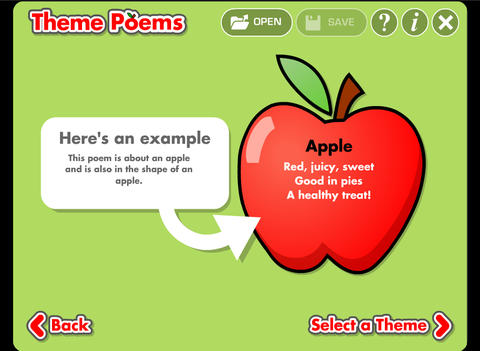
theme poemTheme Poem helps kids learn about and write theme poetry. A theme poem is sometimes called a shape poem. It is written in the shape of what the poem is about. For example, the apple poem is written in the shape of an apple.

Again, this app is perfect for a classroom where devices are shared because each student creates his/her own profile. The app gives an example of a theme poem. Then the student selects one of 5 themed files – nature, school, sports, celebrations, shapes. Each themed file has 5 – 8 shapes for students to choose. Once a shape is chosen, the app advances to a “think of words” page for the student to brainstorm his/her ideas. Then the app advances to a “write your poem” page. The brainstormed words are displayed to help. Work can be saved in progress – reinforcing the elements of the writing process. Finished poems can be saved to the device’s camera roll or emailed. This app mirrors ReadWriteThink’s popular theme poem web-based interactive: http://www.readwritethink.org/files/resources/interactives/theme_poems/. Students can send their editable poems to an email address and then open them in the online tool!

Download link: https://itunes.apple.com/us/app/theme-poem/id724978211?mt=8&uo=4

0

Cursive Writing Wizard – Trace Letters & Words

handwriting

FREE today – Cursive Writing Wizard – Trace Letters & Words, a fabulous app for teaching kids how to write in cursive. Start by choosing one of the 4 available fonts: Zaner Bloser, D’Nealian, French Cursive, or French Cursive 2. Then kids are ready to start tracing using animated stickers with fun sound effects. They can trace shapes, upper case letters, lower case letters, numerals, or words. The app has two modes: free or 5 stars. In free mode, kids trace the letters with all of the parameters selected. By selecting the “gear” button, the app’s parameters can be  customized to fit each child’s needs – letter size, difficulty, style (stickers or pen), show/hide model, allow to stop between key points, tracing speed, etc. In the 5 star mode, kids trace each letter 5 times – each step is more challenging. Detailed reports are provided showing what kids have completed. Teachers/parents can replay and export tracings to view a chid’s progress – wow! And, the app permits unlimited users – perfect for the classroom.

After teaching cursive writing for 30 years, I know that the biggest challenge is teaching kids to properly connect the letters. This app does a fabulous job!! There is a list of 3-letter words and often confused letters for kids to practice. But the best part of this app is the ability to add new lists. Kids’ names can be added. Lists of words with difficult connections can be added. Weekly spelling lists can be added. There are so many possibilities for meaningful practice of cursive writing. Don’t miss out on this one – it’s the best cursive writing app that I have seen to date!

Download link: https://itunes.apple.com/us/app/cursive-writing-wizard-trace/id757843896?mt=8&uo=4

0

Labo Drawing Lessons

labo

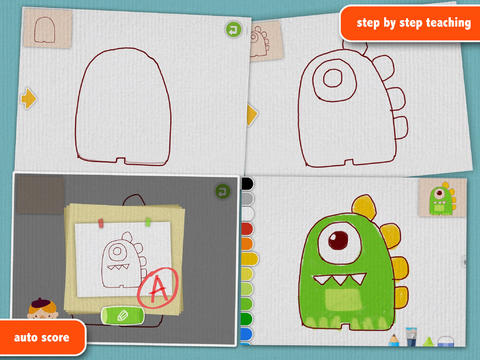
FREE for a limited time – Labo Drawing Lessons. This educational app has 3 different modes: drawing lessons, free drawing, and PK. In the lesson mode, your child will learn to draw 40 different things from 5 categories: animals, plants, vehicles, monsters, people. The app utilizes a step-by-step teaching method then scores (from A+ to D-) the drawing after it has been completed. In the free drawing mode, kids work on a blank canvas and draw their own creations. They are not scored in this mode. They can choose from 3 tools (pencil, crayon, brush) and 18 different colors. They can also pull in photos from the camera roll to use as a background. In both modes, kids can take pictures of their drawings, redo them, or trash them. If they take a picture, the creation is stored in the photo gallery and saved to the device’s camera roll. Once a drawing is on the camera roll, it can be shared, printed, or pulled into other apps. Finally, there is a PK mode which permits a child to compete with their parents or friends to see who can draw faster. Check out this YouTube video to see how this app works: http://www.youtube.com/watch?

Download link: https://itunes.apple.com/us/app/labo-drawing-lessons-3y+/id879834557?mt=8&uo=4

0

My Story – Book Maker for Kids

story maker

One of my favorite writing apps – FREE today.

My Story – Book Maker for Kids is a great writing app for the iPad. The cost is normally $3.99 but it Is currently FREE. Kids can easily create then read an unlimited number of their own e-books using this app. Upgraded in March, the design has been simplified to make it easier for writers of all ages. Kids create their books one page at a time by typing in their text and adding their artwork. They can use a variety of mediums for their art –  stickers, drawings (with pencils, paints or markers), camera photos, or pictures saved in the photo library. They can also record themselves reading their books. Finalized stories can read directly from the app, be published to iBooks, and/or shared via email with anyone who owns an iPhone or iPad.

Watch the video and learn more about this app here: My Story – Book Maker for Kids.

What a great medium for your child to share his/her life experiences with grandparents and other loved ones – take photos of your day (at the zoo, in the park, etc.) and let your child narrate the experience! The voice recordings remain intact when the book is shared. The words can be typed in after your child has provided the narration so that kids learn that the words in books are really just “talk written down.”

My Story is perfect for the classroom because teachers can add multiple authors and sync it across multiple iPads! Kids can share their stories with friends through iBooks, write and present digital reports, keep ongoing vocabulary books and/or journals etc. What a fantastic tool to encourage writing! Don’t miss this one!!

My Story - Book Maker for Kids - HiDef Web Solutions

0

Number Line, by the Math Learning Center

number lineNumber Line, by the Math Learning Center is a fantastic FREE app that will help kids visualize number patterns and understand number operations. The app is well-designed with several useful features. The number line can be set by ones, twos, fives, tens, twenty-fives, and hundreds. It can also be customized to show multiples of any whole number from 1 to 100. This feature is perfect for skip counting and/or for visualizing multiplication. The app permits kids to add and manipulate forward & backward jumps – a great feature for teaching addition & subtraction. This feature also helps kids visualize multiplication as repeated addition of the same number and division as repeated subtraction of the same number. Teachers are able to hide or reveal numbers on the number line. This feature can be used to challenge kids to apply what they know in order to figure out the missing number/numbers. Teachers can also use this feature to teach kids how to solve more difficult patterns that are missing several numbers; such as 4, __, __, 16.  Kids can use the drawing tools to show what they know. They can write equations and expressions with the text tool. They can screen shot their work and use it as an exit slip after a lesson. Add this one to your virtual toolkit today – “seeing math” helps kids understand it. 🙂

Download Link: https://itunes.apple.com/us/app/number-line-by-math-learning/id751816884?mt=8&uo=4